
Why do we use Insightful?
Insightful keeps a record of your work time and the apps and websites (including AI tools) you use while working on a project. It helps us confirm your hours and back up the work we report to our clients.What do we track?
Tracking is set per project, and it only runs while your timer is running on that project’s task. When the timer is off, nothing is tracked. While it runs, Insightful records:- App and website names
- Page addresses (URLs) and window titles
- Time spent in each
- Active versus idle time
- What you type
- Audio or video from your camera or microphone
- Anything on your phone
Does it take screenshots?
If a project uses screenshots, we will tell you before you start. Otherwise none are taken.How do I get my invitation?
Invites are sent per project, by email, titled “Welcome to Insightful”. Check your spam folder too. If you haven’t received your invite for a project, ask your point of contact (POC) for that specific project.How do I install Insightful?
- Open the “Welcome to Insightful” email and click “Start using Insightful”.
- Set a password.
- Download the desktop app for Windows, macOS, or Linux (beta). You can also log in at app.insightful.io and click Download.
- Install and open the app.
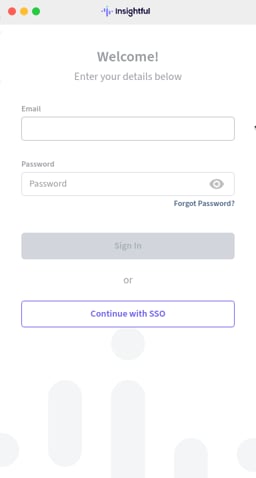
- Log in with the email address the invite was sent to and your new password.
- Choose AfterQuery as the company.
- On a Mac, allow the permissions the app asks for.
What computer do I need?
Insightful runs on a desktop or laptop computer:- Windows 10 or later
- macOS 11 (Big Sur) or later. macOS 12 (Monterey) or later is recommended.
- Linux (beta): Ubuntu 20.04 or later, Linux Mint 20 or later, or Fedora 32 or later, on a 64-bit Intel or AMD computer using the X11 (Xorg) display server
Can I use more than one computer?
Yes. You can install Insightful on more than one computer, but run the timer on only one at a time. Before you switch, stop the timer and close the app on the first computer, then start your timer on the other one.How do I pick my task?
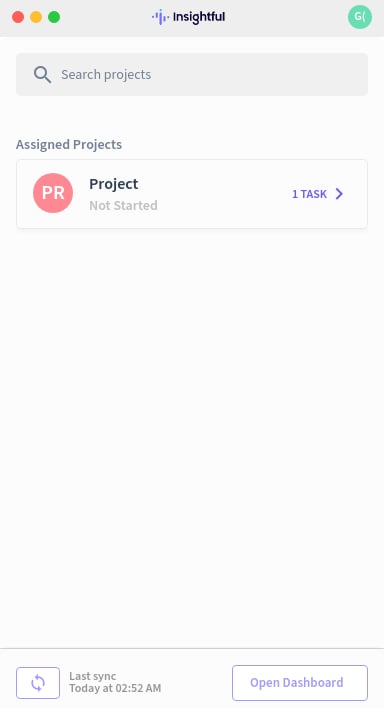
- Open the app. Your projects appear under Assigned Projects, with their status and number of tasks. Use “Search projects” if you have several.
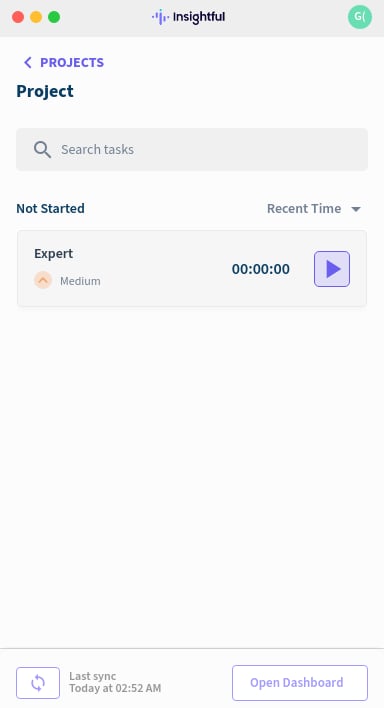
- Click your project to see its tasks. Find your task in the list (or use “Search tasks”). Use “<PROJECTS” to go back to the list.
Expert or Reviewer?
Some projects have both an Expert task and a Reviewer task. Your role should be specified ahead of time. If it isn’t, assume you’re an Expert on the project. If your role is different, your project lead will tell you. If you were assigned both, check in with your project lead so you track time under the right task.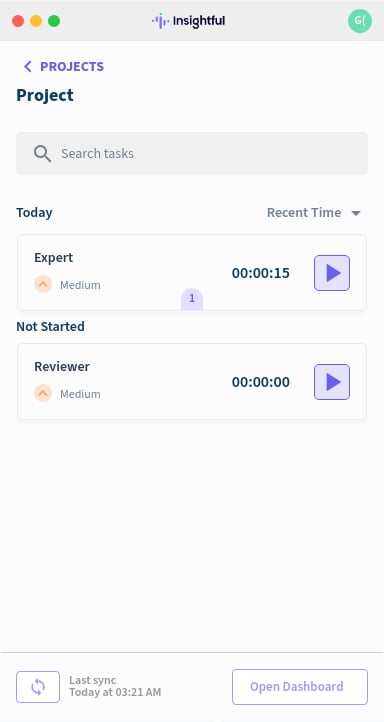
How do I start and stop time?
There is no separate clock in. The task timer is all you need.- Before you begin working, click the purple play button on the right of your task.
- The timer starts and counts up, and the button turns into a red stop square.
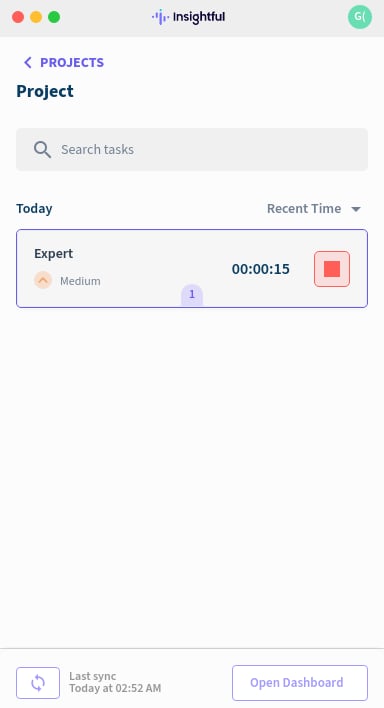
- When you finish or take a break, click the red stop square to stop the timer.
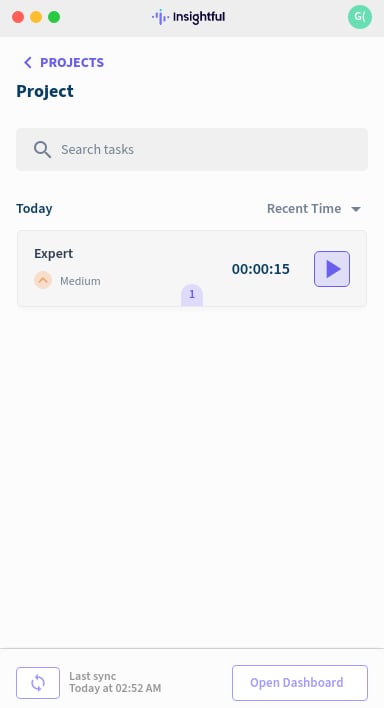
What if I forgot to stop my timer?
Tell your project POC right away. Share the date and roughly how long the timer ran after you stopped working. Only time spent working on the project counts.What if I tracked time on the wrong project or task?
Stop the timer and start it on the right task. Then tell your project POC the date, roughly how long you tracked, and which task it should have been under, so it can be fixed. You can’t move time yourself.Where can I see my own hours?
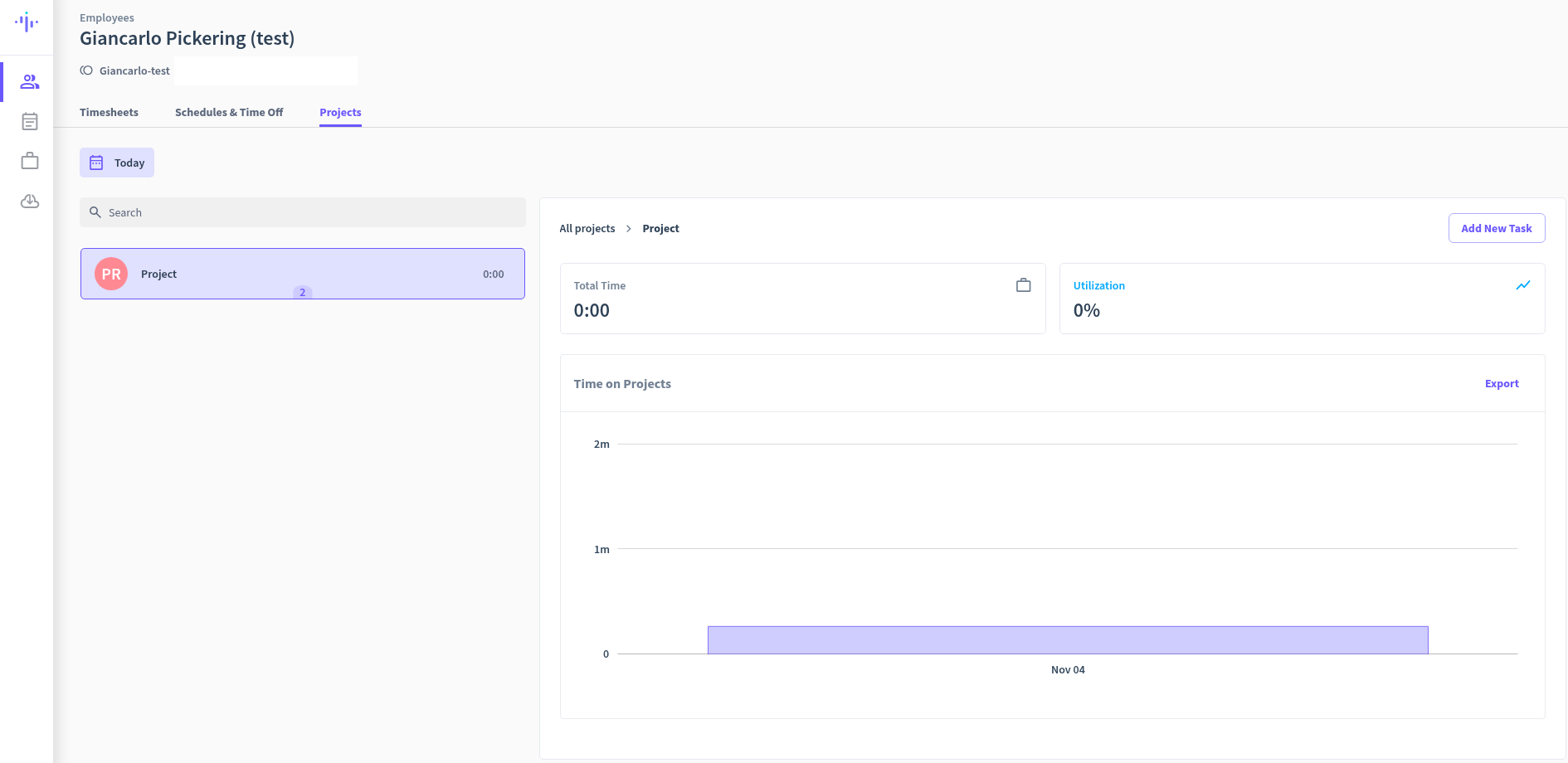
Log in at app.insightful.io, or click “Open Dashboard” at the bottom of the desktop app. The Employees page shows only you, for Today by default (use the date button to change it). You’ll see your Work Time, Computer Activity, Productive, Unproductive, Neutral, and Break Time.
- Timesheets: each day’s clock in and clock out times and work time (Day View or Shift View).
- Schedules & Time Off: your shifts and time off.
- Projects: your time per project and a Time on Projects chart. You can export it.
How does tracked time relate to my hours?
Your project hours come from the time you track under your task in Insightful. Only active work on the project counts. You can’t add or edit time yourself. If something needs fixing, ask your project POC. If your hours look wrong, contact your project POC or email support@afterquery.com.Troubleshooting
- Logging in: sign in with the same email your invite was sent to. If Insightful asks you to create a new organization, don’t. Contact your project POC instead.
- Can’t log in or invite link expired: use Forgot password on the login screen, or ask your project POC for a new invite. If you already registered, just log in at app.insightful.io.
- Can’t see your project or task: make sure you logged in with your invite email and chose AfterQuery. A newly assigned project can take up to a day to appear. If it’s still missing after that, tell your project POC.
- Stay connected: stay connected to the internet while you track. If your connection drops, Insightful saves your time on your computer and uploads it once you’re back online, so your hours may show up a little late. After you stop the timer, leave the app open for a minute so your time finishes uploading.
- Hours on a different day: if your time zone is different from the project’s, your hours can look shifted to a different day. Check the date range before reporting missing time.
- App won’t open or log in: check your email and password, allow the Mac permissions, or reinstall from app.insightful.io (click Download).